Showing posts with label Extended Book Mod. Show all posts

Tuesday, March 27, 2012

Skyrim Books Update


There a number of important updates regarding the progress of Skyrim Books.

The first is that one of our team member has disappeared and we have not heard from him for weeks. Since he was the one that was building the bookstore, we are going to have to figure something else out. nox.fox has offered to build a level, and I have an old level that we could use. Whichever possibility we decide on, the project will inevitably be delayed.

Because of the loss of our team member, we have also lost a number of stories and authors which we had decided would be added to the mod. He had gathered a list of stories from authors that he contacted and was going to send them to us. If you are an author that had their work accepted by John, please shoot us an e-mail and we will include your story in the mod.

We aren't sure what happened to him. If you do know, we'd appreciate it if you could let us know. And if you're reading this John, please let us know what's going on, buddy.

Thursday, February 23, 2012

Tutorial: Readable Spell Tomes

Object: To make spell tomes readable, instead of losing them when the spell is learned.

Difficulty: Easy-Moderate (involves script editing)
[edit] It appears that modifying the spell tomes causes conflicts with the vendors lists with Crash To Desktop whenever the spell tomes are hovered in the lists. Hence another solution will have to be figured out but the tutorial is still interesting to approach the functions of spell tomes and scripting.

Time Needed: Less than 5 minutes

Things you will need:

  • Creation Kit. The Creation Kit is the modding tool for Skyrim and can be downloaded for free on Steam.
  • Some previous experience with item-editing, and (preferably) script editing
Note: The scripting part of this tutorial is a one-time ordeal. After the script has been made, you will simply need to add it to each book that you want to apply it to, rather than creating a new script for each item. For users of the Readable Spell Tomes mod on the Nexus and the Workshop, you can skip to step 8.

Download: To download the Readable Spell Tomes mod, visit the:
Steam Workshop at:  http://steamcommunity.com/sharedfiles/filedetails/?id=13474
Nexus at: http://skyrim.nexusmods.com/downloads/file.php?id=10954

1. Open the Creation Kit and load the appropriate Data Files.
2. Open the 'Gameplay' Menu and click 'Papyrus Script Manager.'

3. Right-click in the Script Manager, and click 'New.' This allows you to create a new script.
4. Name your new script "SpellTomeReadScript". This is not a required name, but it is simple and easy to find when you search for it later. Also, type "ObjectReference" into the Extends text box. It MUST be "ObjectReference" and NOTHING else.

5. Click OK, and type/copy the following into the editor that pops up:


Scriptname SpellTomeReadScript extends ObjectReference  
{Adds spell to player on equip}

Event OnEquipped(Actor reader)
if (Game.GetPlayer().HasSpell(SpellLearned))
Debug.Notification("You already know this spell.")
endIf
Game.GetPlayer().AddSpell(SpellLearned)
EndEvent

Note that the first time you open a script you may need to tell Windows which program it should use to open the script file. If so, choose a program like Notepad (or Notepad++ if you have it) in the list Windows proposes.

6. Don't worry about the last line that you see in the image above. That is added in automatically by the CK when you add the script to an item later in the tutorial. (nox.fox: personnaly I had to add this last line to compile the script successfully)
7. Save the script. Right click on the script in the Script Manager, and click 'Compile'. Click on your script in the box that pops up. If the box disappears, then the script was compiled successfully and no errors were found. If it says that there was an error, then something in the script was typed incorrectly.
8. In the Object Window, navigate to the Items > Books category, and find the Spell Tome that you want to modify.
9. Double-click on the book to edit it. The first thing you must do is to deactivate the standard option of teaching a spell. On the left side of the Book window, there should be a 'Teaches' section, and then two options. For a spell-tome, the 'Spell' option should be filled, and the appropriate spell should already be selected in the drop-down menu. Open the drop-done menu, scroll to the top, and click NONE. This deactivates the spell-teaching, so that we can use the SpellTomeReadScript instead.
10. Now click 'Add' in the Scripts section of the Book window. A window should pop up that lists all of the scripts. Find the 'SpellTomeReadScript' and click OK.

11. In the Scripts section of the Book Window, select the 'SpellTomeReadScript' and click 'Properties.'
12. Click Add Property in the window that pops up.
13. Select SPELL from the drop-down menu in the new window, and type "SpellLearned" in the 'Name' text box.
14. Click OK. Select your new property, and click 'Edit Value'.
15. Select the spell that you want to add to the player from the drop-down menu, and click 'OK.
16. The script should be added correctly to the item. Save the mod, and test the spell tome ingame.
17. To make other spell tomes readable, repeat steps 9-15 for the spell tome or book that you want to modify.

Notes/Possible Bugs:

1. Note: This process can be used on any book to have it teach a spell without being destroyed.
2. If you have tested your book out, and it is not working, then go back over the tutorial carefully and make sure that everything was typed in correctly and that you disabled the standard method of making books teach a spell.


Feedback:

If you have any comments/questions, or would like to request a tutorial, then please feel free to leave a comment. I will answer your question as quick as I can. If you request a tutorial, I'll let you know when/if you should expect your request to be fulfilled.

Wednesday, February 22, 2012

Tutorial: Adding Images to Skyrim Books


Object: To add an image to a Skyrim book through the Creation Kit.

Difficulty: Easy

Time Needed: 10 minutes at most; much less once you get used to the process

Things you will need:
  • The Creation Kit. The Creation Kit is the modding tool for Skyrim, and can be downloaded from Steam.
  • Some previous understanding of the Creation Kit (preferably).
  • The image you want to add (I would suggest that it be a simple image with a clear background).

1. Download or find the image that you want to add to the game.
2. Navigate to the Skyrim Data folder. This will be in the install directory for Skyrim, which usually is at Program Files > Steam > steamapps > common > skyrim > Data, and find the Textures folder.
3. Create/find folders in the following order: clutter > books > images.

4. Copy/move the image you want to use into this directory. I used a image named "Sakin_04.png" as an example.


5. Open the Creation Kit and load the appropriate data files.
6. In the Object Window, navigate to the Items > Books category.
7. If you want to add the image to an existing book, then find the one you want, and double-click on it. If you want to create a new book, then find a book with the world model you want to use, and change the info and model to what you want it to be. The reason for this is that simply creating a 'New' book will mean that you have to add a world model to it. This is a large hassle if you are just trying to create a book without a unique appearance.
8. Next, add the code:  <img src='img://Textures/clutter/books/images/your_picture.png'>  but replace "your_picture.png" with the filename of your image.
9. Click 'OK' to save, and click 'Yes' when a prompt asks you if you want to "create a new Form".
10. Save your mod.
11. Next, you will need to test your mod. Start Skyrim.exe, select your mod, and (preferably) deselect all others. Start the game.
12. Once you get to the Main menu, either load a clean save, or type the following into the console: coc QASmoke . This code places you into the Skyrim testing room with a default Nord character. To bring up the console, press the "tilde" (the ~ character) on your keyboard.
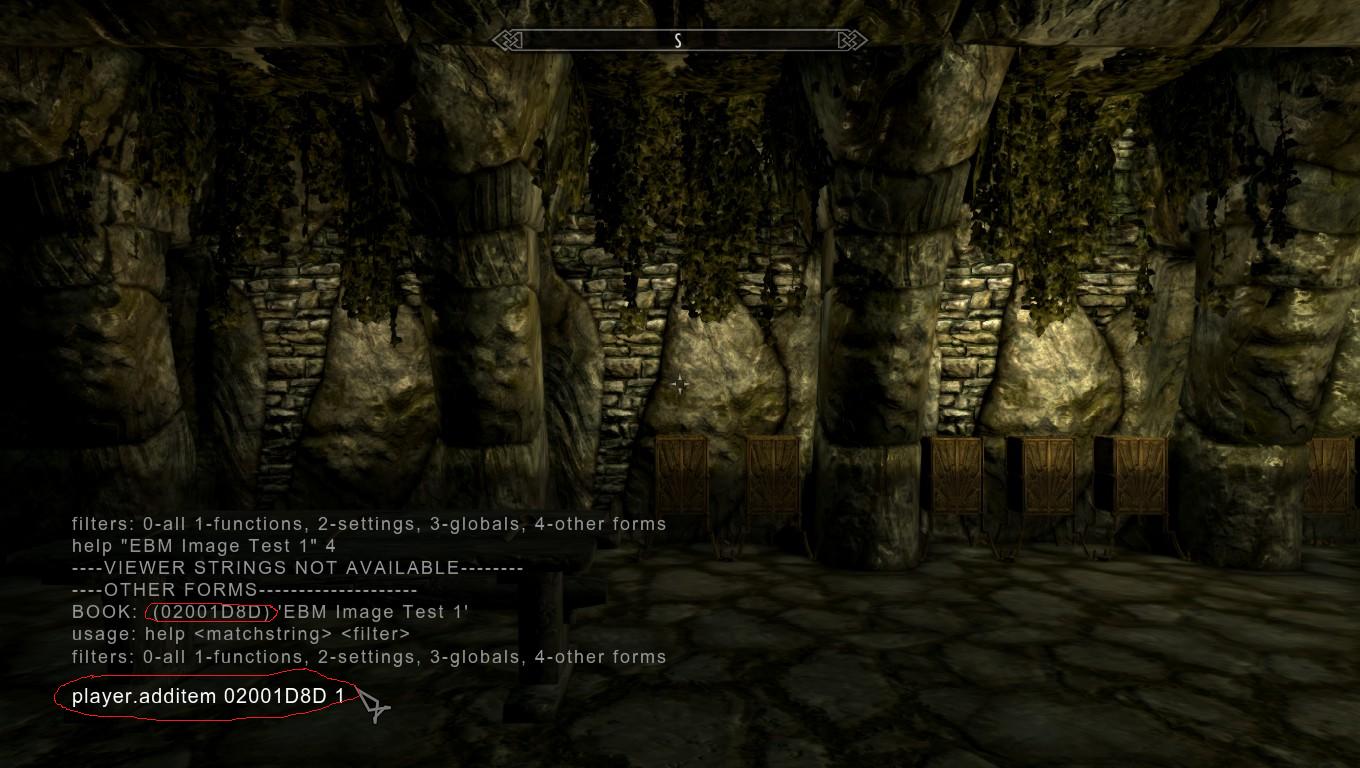
13. Type  help "Your Book Name" 4    into the console. Replace "Your Book Name" with the 'Name' of your book. Make sure to not use the ID, but the actual Name. Doing this will give you the code to add the book into your inventory.

14. Type player.additem itemcode 1 into the console, but replace "itemcode" with the code that you get from the console. This should add the book into your inventory
15. Open your inventory and find the book.
16. Open the book and turn to the page where the image should be. If all worked correctly, then you should see the image.


Notes/Possible Bugs:

If the image was not in the book, then there are a number of possible reasons.

1. The image type may be foreign to the CK. I do not know all of the filetypes that the CK recognizes, but all of the default images are .png images. I would suggest that you make sure your image is in the .png format.
2. The code in the book may have been input incorrectly. Make sure that it accurately details the address of the image. Also, make sure that the address starts from the Textures directory, rather than the Data directory or the hardrive's main directory.
4. The code could have been written in a format other than the one accepted by the CK. You must use
specific fonts in the CK. You must make sure and use:
['] and not [’] (the second one has a slight curve)
[" "] and not [“ ”] (the second ones are slightly curved as well)
[...] and not […] (the second one is only one character composed with the alt+0133 code in spite of 3 dots)

5. The image may not have been added into the mod's archive. The CK is supposed to automatically add any new files to the archive, but it may have failed. If the code was correct, then try adding the file manually to the archive. You can do this by going to the File menu in the CK and selecting 'Create Archive'. A window will pop up with horizontal slots in it. Drag-and-drop your image from its folder into this window and click 'Pack Files'. Save the mod, and test it again.

(next part added by nox.fox)

The image may appear scaled down. As you can see on the screenshot below, no matter the size of the picture, by default the image is scaled down (click the images to see their original sizes).

So in order to solve this out you must add height and width information in the image tag. These information are the size in pixels of your image. You can find these information either in the properties of your image file (right click>properties) or in any image editing software like Photoshop.
  • <img src='img://Textures/Interface/Books/Daedric Artifact book/Daedric Artifac00.png' height='471' width='296'> (replace the numbers by the right height and width size of your picture)
  • Note that the size of a picture in its properties is given like 296x471 where 296 is the width and 471 is the height. However in the tag the information make sure you indicate the height and width information in the appropriate field or the image will be distorted like on the second picture below (nox.fox: where I forgot to correct the image path after changing the size information).
  • Also note that 296x471 is the maximum size of a picture. A larger picture will still be displayed but all the pixels out of the 296x471 area will be hidden.
  • You can purposely input wrong numbers to scale your image. In example, if your picture is 40x60px large, you can input height='120' width='80' and it will appear 2 times bigger in the book. While this trick can allow the creation of smaller files with a smaller weight I don't suggest to do this in hope to reduce the weight of your files. It would be interesting if you had to make your files fit on a DVD with limited storage for a whole game but we don't have this problem as modders. Also since illustrations are only displayed when the book is opened it won't affect the performances. But I'm just saying that if you want to do something like this, it's possible!
  • Images cannot be centered with the <p align="center"> tag. If you want your image centered you should set the width to 296.


Packing your images in a .bsa

In order to share your mod you might have to manually create a .bsa. Normally the CK creates the .bsa automatically when you upload it on Steam, but sometimes it might not work. Or maybe you don't want to put your mod on Steam but still want to share it with friends or teamworkers.
In this case, here is a way to do it quickly in a few clicks. Click the image below to enlarge the tutorial.


Feedback:

If you have any comments/questions, or would like to request a tutorial, then please feel free to leave a comment. I will answer your question as quick as I can. If you request a tutorial, I'll let you know when/if you should expect your request to be fulfilled.

Tuesday, February 21, 2012

ExtendedBooks Mod 01


ExtendedBooks Mod
or
EBM


Description
EBM aims to both enhance the graphics of some of the ingame books with a texturing work to create more variations in the books, and to add more new books in the game.


This project will be communautary, gathering books created by several writers in way to get more books at once in a single mod. You can see below how you can contribute.


What we're looking for
  • Writers. Good ones, see requirements below.
  • Texturers. No 2048^2 maps will be allowed! You should be able to do something awesome with a 512^2 =D
  • Think you can help in another way? Make your proposition! =)


Book submission guidelines
  • The book has to be original. No rip off will be tolerated. If you cannot write by yourself this place isn't for you.
  • The book must be submited as a simple RTF file containing the whole text.
  • The text should be formated very simply. First the title, then name of the author, then the content. Just like the ingame books. Just mind skiping a line or two between paragraphs if you're not at ease with script tags (see below).
  • Sign the book not by your irl name or Internet pseudo. Sign it with the name of your Tamrielian alter ego. Of course the name shall be appropriate, such as "Sothis Andas" for a Dunmer.
  • Pay a great attention to apostrophs and brackets, it may sound stupid but the font used ingame is very strict on characters. Thus your apostrophs and brackets should be the default ones you get with US/UK qwerty 
  • keyboards. In fact avoid any special character in general and anything generated by alt-codes, no thin spaces or such formating.
  • ['] and not [’] (the second one has a slight curve)
  • [" "] and not [“ ”] (the second ones are slightly curved as well)
  • [...] and not […] (the second one is only one character composed with the alt+0133 code in spite of 3 dots)
  • Choose a model for your book among these if you don't have a personal texture: 


Script formating
[pagebreak]


<p align="center">
Another Book of Daedra
or "Through the Eyes of Oblivion"
by Sothis Andas
<p align="left">
[pagebreak]
You probably already know the wondrous Book of Daedra describing the spheres of the Daedra princes and maybe you think this present book is a rip off.
Not exactly I would say. This book is also about the Daedra princes and their spheres but the focus is more on the "why" than on the "who and what".
<p align="left">
As a Dunmer grown up in Vvardenfell the Daedra were always part of my life. I grew a fascination for them quickly, with a special appreciation for clannfears in my
very childhood. At that time I would spend a lot of time day-dreaming about the Daedra, letting my mind wander in Oblivion and conjuring lesser creatures before I knew it.
[...]
<img src='img://Textures/Interface/Books/Illuminated_Letters/A_letter.png'>zura,
the prince of dusk and dawn.
<p align="left">
Azura is often considered as a rather good Daedra, or not completely evil Daedra, by many even out of Dunmer people and people easily believe she is actually good.
Of course that is wrong, Daedra have no interest in mortals, only in themselves, they only have interest in how mortals can serve their survival. But Azura is quite special.
She may come to really appreciate mortals but then becomes very possessive and the loss of a mortal may lead to dread consequences. Like when Nerevar died and she
cursed the whole Chimer people who became the Dunmer.


[pagebreak] is obviously a page break. It should stand on an empty line, you can't put it at the end or beginning of a paragraph.
<p align="center"> centers your text. the "left" version aligns it on the left. As you see it isn't necessary to close the tag with a </p> but you can do it if you want.
NOTE that it changes the paragraph! Paragraphs are seperated by the equivalent of skipping 3 lines. Just so you know.
<img src='img://Textures/Interface/Books/Illuminated_Letters/A_letter.png'> inserts an illuminated letter's picture. You can replace the A in A_letter.png by any other letter to get the one you want.
<font face='$HandwrittenFont'></font> changes the font (in handwritten font here). by default the font used is the one seen in the books so you should use this tag only if you want to switch to another font. The available fonts and their tags can be seen on the wiki (plus they've just added pictures of what the fonts look like and all the available characters).
more tags can be found here, on the CK wiki